How to Get AI Coding Agents to Follow Your Design System
AI coding agents ignore your design system and write hardcoded colors and random spacing. Here is how to give them the context and the checks to stay on it.

AI has made it ridiculously easy to build interfaces. You can describe a page, give an agent a few instructions, and have something working in just a few minutes.
But getting AI to build something that actually fits into your existing design system? That's where the real challenge is.
Ask it to build a new page, and you might end up with buttons that look slightly different, spacing that feels off, or a bunch of hardcoded colors that weren't part of your design system.
And the more pages you generate, the messier things can get.
So how do you get AI to stop guessing and start following the same design rules as the rest of your app?
That's what we're going to explore in this tutorial.
We'll follow one small piece of a billing app called Ledger: the badge that shows whether an invoice is paid, overdue, or failed. At each step, you'll see how the code an agent writes for that badge changes.
The goal is a design system your AI agent can actually understand and follow the next time you ask it to create something.
Why AI agents ignore your design system
Here's the kind of badge an agent writes when it can't see your design system:
<span className={css({ bg: '#fee2e2', color: '#b91c1c', px: '8px', py: '2px', rounded: '9999px', fontSize: '12px' })}>
  Failed
</span>
It looks right on the page. But every value in it is hardcoded. If your design system's red changes, this badge won't.
The agent isn't being careless. It just can't see your design system. Your colors live in a Figma file or a config file
it never opened, so it copies whatever values it finds nearby. And nothing stops it, because #fee2e2 is perfectly
valid CSS.
The fix is to give the agent a system it can copy, tell it where that system is, and make anything outside the system fail.
Step 1: Give the agent a system to copy
First, put your design decisions into code the agent can read.
Start with tokens. Name them by what they're for, not what they look like. An agent asked to style a failed payment can
guess status.failed.bg. It can't guess which of your reds is the right one.
panda.config.ts
import { defineConfig } from '@pandacss/dev'

export default defineConfig({
  // ...
  theme: {
    extend: {
      semanticTokens: {
        colors: {
          status: {
            failed: {
              bg: { value: '{colors.red.100}', description: 'Failed payment badge background' },
              fg: { value: '{colors.red.700}', description: 'Failed payment badge text' }
            }
            // paid, overdue, and draft follow the same shape
          }
        }
      }
    }
  }
})
The description is optional, but add it. It tells your teammates and the agent when to use each token.
Then turn the badge into a recipe, so the agent picks a status instead of picking colors:
theme/badge.ts
import { defineRecipe } from '@pandacss/dev'

export const badge = defineRecipe({
  className: 'badge',
  description: 'Invoice status. Pick a status, never set badge colors by hand.',
  base: { px: '2', py: '0.5', rounded: 'full', fontSize: 'xs', fontWeight: 'medium' },
  variants: {
    status: {
      paid: { bg: 'status.paid.bg', color: 'status.paid.fg' },
      overdue: { bg: 'status.overdue.bg', color: 'status.overdue.fg' },
      failed: { bg: 'status.failed.bg', color: 'status.failed.fg' },
      draft: { bg: 'status.draft.bg', color: 'status.draft.fg' }
    }
  },
  staticCss: [{ status: ['*'] }]
})
Add it to your config under theme.extend.recipes, and the badge becomes one line:
<span className={badge({ status: 'failed' })}>Failed</span>Now the part that's easy to skip: update your existing pages to use the recipe. Agents copy the code around them.
When Ledger's pages were full of hex values, the agent copied hex values. Once the pages used badge(), the agent used
badge() too, without being told.
Step 2: Tell the agent where to look
Next, point the agent at your system.
Project rules. Add a short styling section to AGENTS.md (or CLAUDE.md, or whatever file your agent reads first):
AGENTS.md
## Styling

- Use the recipes in `styled-system/recipes` (`badge`, `button`, `card`, `input`). Don't style these by hand.
- Use semantic tokens like `status.failed.bg` and `fg.muted`. Never write hex colors, px values, or inline styles.
- If a token you need doesn't exist, stop and say so. Don't invent one.
Panda's agent skills. These teach the agent how Panda works, like where to find your real token names:
npx skills add chakra-ui/pandaThe Panda MCP server. This lets the agent look up the tokens and recipes that exist in your project right now. Add
it to .mcp.json in your project root:
.mcp.json
{
  "mcpServers": {
    "panda": {
      "command": "npx",
      "args": ["-y", "@pandacss/mcp"]
    }
  }
}
In our tests, these steps alone got the agent to stop writing hardcoded values. But they're still instructions, and an agent can ignore an instruction. The last step catches it when that happens.
Step 3: Make mistakes fail
Turn on strictTokens in your config:
panda.config.ts
export default defineConfig({
  strictTokens: true
  // ...
})
Now a hardcoded value on a property that has tokens is a TypeScript error. The original badge, with '#fee2e2' and
'8px', no longer compiles.
Then add the Panda ESLint plugin, which checks your code against your actual tokens:
eslint.config.mjs
import panda from '@pandacss/eslint-plugin'

const pandaConfig = await panda.configs.recommended({ configPath: './panda.config.ts' })

export default [
  // ...your existing config
  {
    ...pandaConfig,
    rules: {
      ...pandaConfig.rules,
      '@pandacss/prefer-token': ['error', { categories: ['colors', 'spacing', 'radii', 'fontSizes'] }]
    }
  }
]
Run it on the original badge and you get:
error  Hardcoded colors value "#fee2e2". Matching tokens: red.100, status.failed.bg (themed)
error  Hardcoded spacing value "8px". Matching tokens: 2
error  Hardcoded radii value "9999px". Matching tokens: full
error  Hardcoded fontSizes value "12px". Matching tokens: xs
Every error names the token to use instead. That's what makes this work for agents: the agent can read the error and fix its own code before you ever see it.
That only works if the agent actually runs the checks, so add one more line to AGENTS.md:
AGENTS.md
- Before you say you're done, run `pnpm typecheck` and `pnpm lint` and fix every error.Does it work?
We gave Claude Code (Sonnet 5.5) the same prompt three times: add a billing settings page to Ledger and match the look of the rest of the app.
Before any of these steps, the agent wrote 11, 20, and 17 hardcoded hex colors in its three tries. With all three steps in place, it wrote none. Every badge, button, card, and input on the page used a recipe.
Here's one page from each:
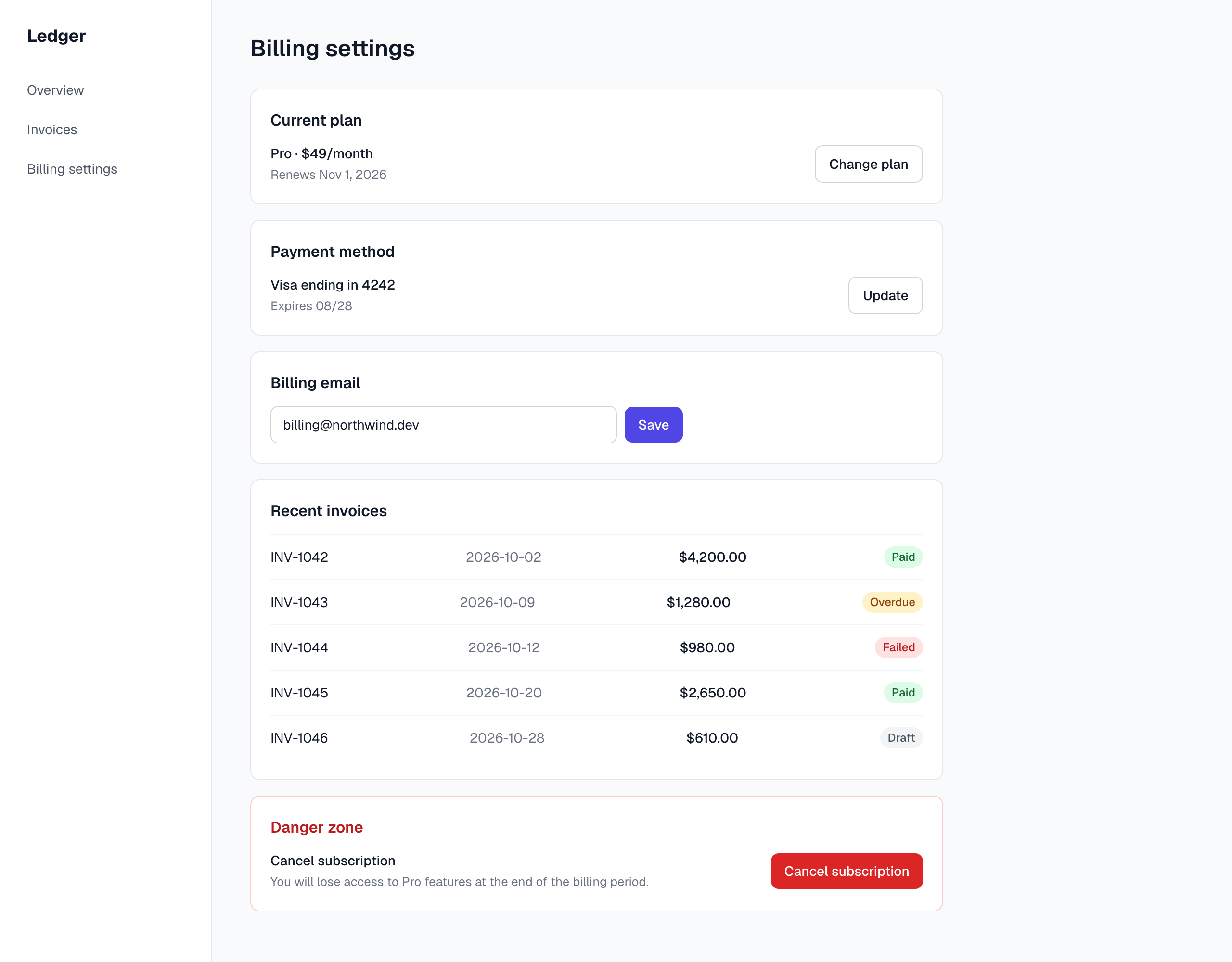
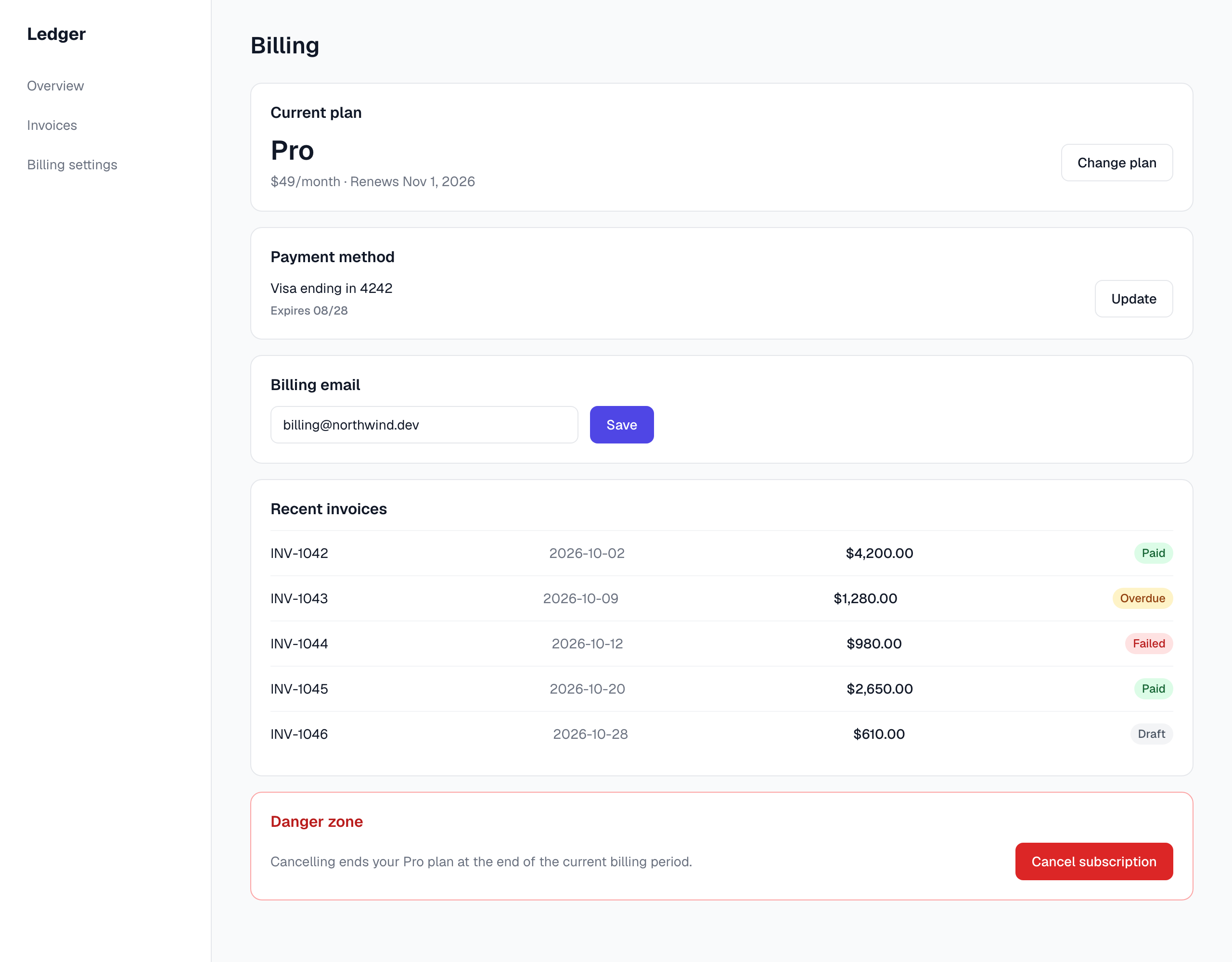
They look almost identical. That's why this problem is easy to miss: the drift doesn't show up on the screen. It shows up the day you change your brand color and 17 values on this page don't change with it.
The checks also earned their place in a run where something went wrong in our setup and the agent couldn't run them. It
used a size token, 3xl, that doesn't exist. Without strictTokens, that would have shipped and silently done nothing.
With it, the build failed.
This was one small app, one prompt, and one model, so treat it as a quick test, not a benchmark.
Watch out for
Values that come from data. In the badge, the status comes from invoice data at runtime, like
badge({ status: invoice.status }). Panda generates CSS by reading your code, so it can't see which statuses you use.
That's what the staticCss line in the recipe is for: it tells Panda to generate every status. We forgot it at first,
and only the draft badge had any color. No check caught it, so open the page and look.
Small surprises with strictTokens. flex: 1 fails, because Panda expects the string '1'. minH: '100vh' fails
unless you add a token for it. For real exceptions, wrap the value in brackets, like minH: '[100vh]'.
Valid but wrong. If the agent uses fg.muted where fg.default belongs, every check passes. Checks catch values
that don't exist, not bad choices. You still need design review.
Turning checks on too early. Add your tokens first. If the agent needs a token that doesn't exist yet, a strict check pushes it to invent one.
Try it
Curious how far your own app has drifted? Ask your agent to run a usage report through the Panda MCP server. On Ledger's six files, it found 51 different hardcoded values, used 62 times.
Then start with the step that takes one command:
npx skills add chakra-ui/panda